Start here
The Zymorph interface
Find the app menu, conversation, working app, model picker, and settings.
The two working areas
Zymorph keeps the conversation and the app side by side.
- Use the left pane to create, explain, and change the app.
- Use the right pane as the app itself.
- Drag the divider between them when one side needs more room.
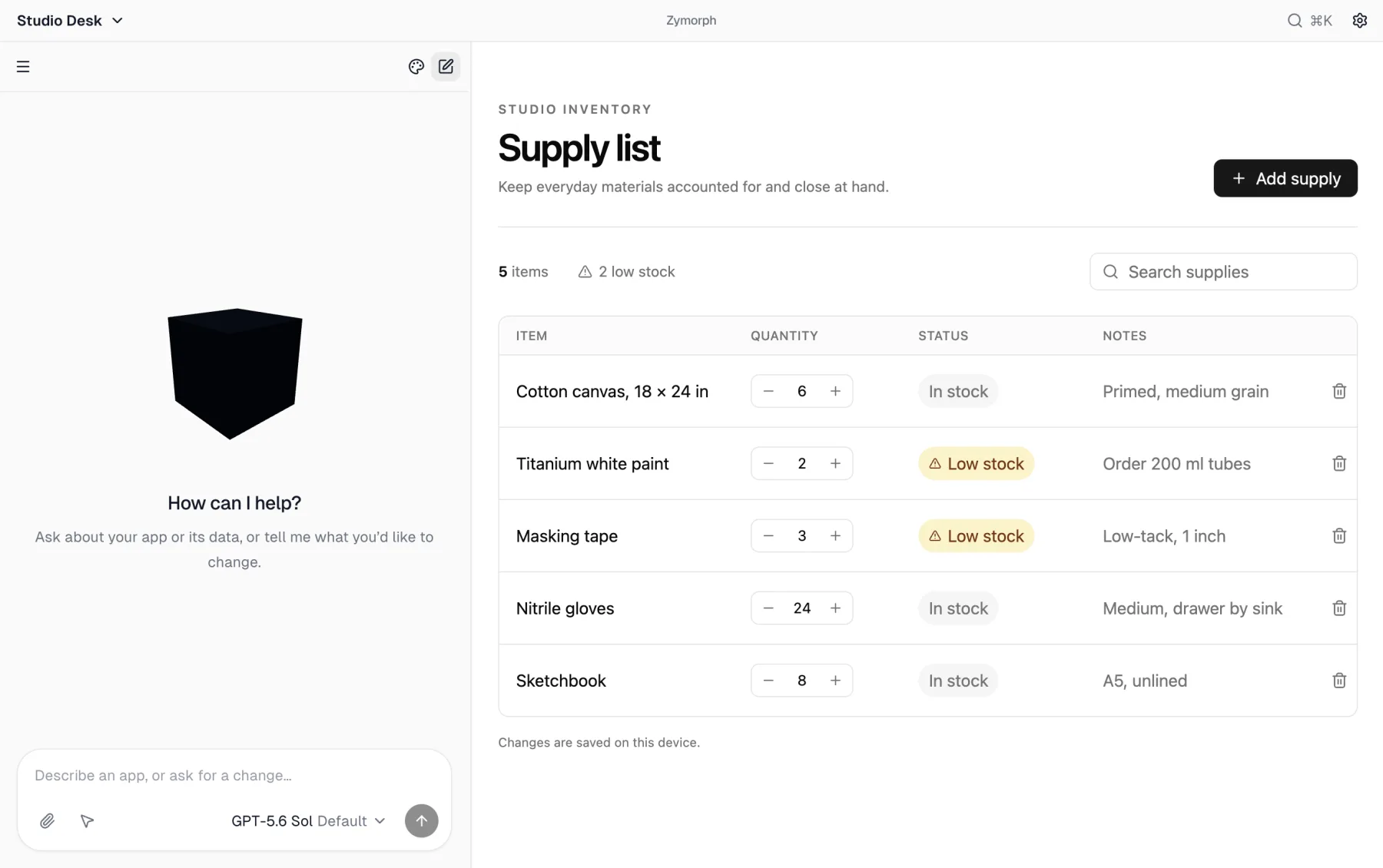 The left side changes the app; the right side is the app.
The title bar
App menu
Select the current app name at the top left to:
- switch to another app on this computer;
- create a new app;
- rename or move the current app to Trash;
- restore or permanently delete an app from Trash.
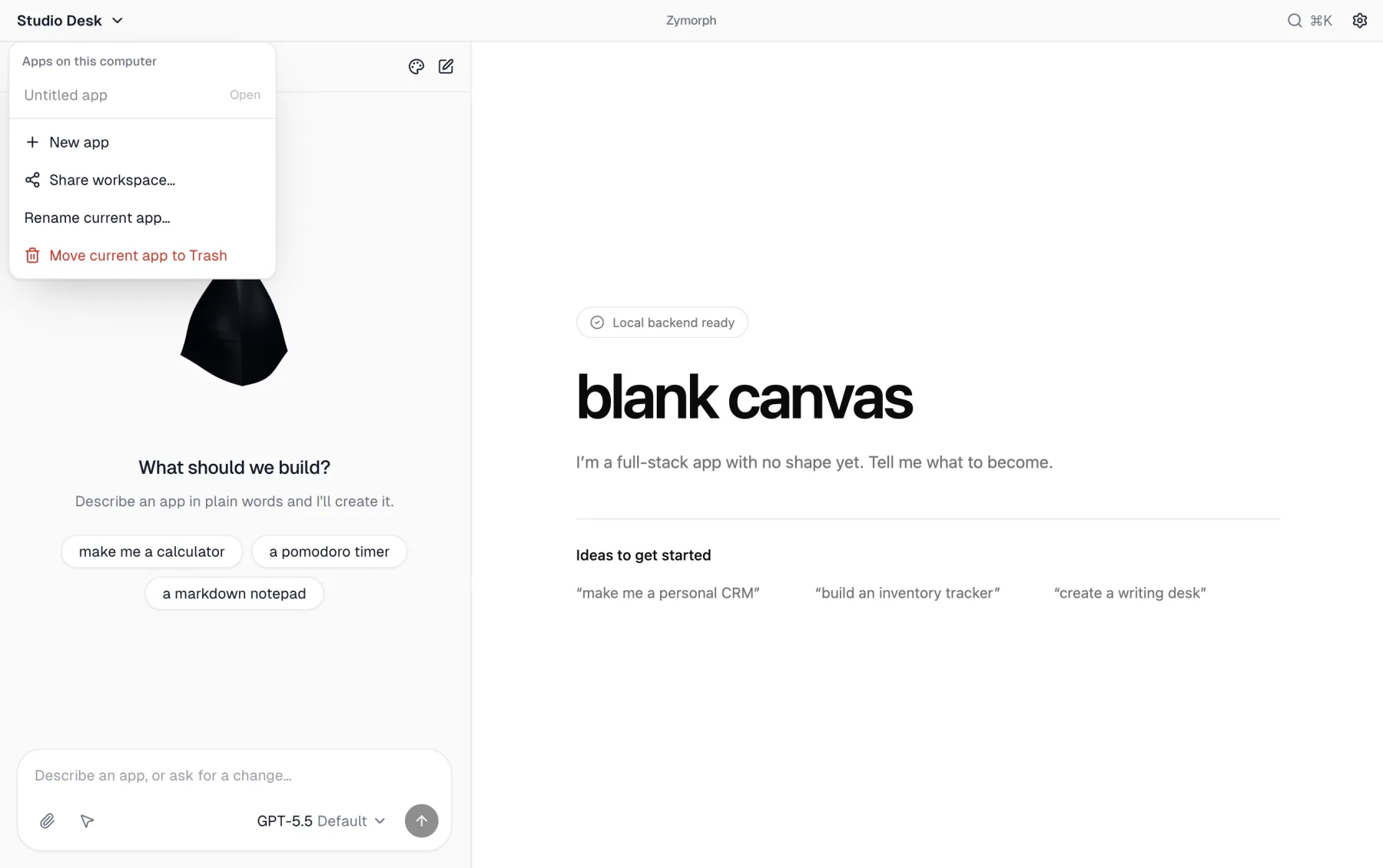 Trash is reversible. Permanent deletion is a separate control beside a trashed app.
Command palette
Select the search control, or press ⌘K on macOS / Ctrl+K elsewhere, to find common actions and models. It is a shortcut, not a separate workspace.
Settings
Select the gear to open Model providers, Connections, Appearance, App controls, Shapes & Recovery, and Delete. Some settings affect this device; others affect only the current app. Settings overview explains the difference.
The conversation pane
Conversations
Select the menu icon above the conversation to open recent chats. A conversation is a history of requests for the current app. Starting or deleting a conversation does not create or delete the app.
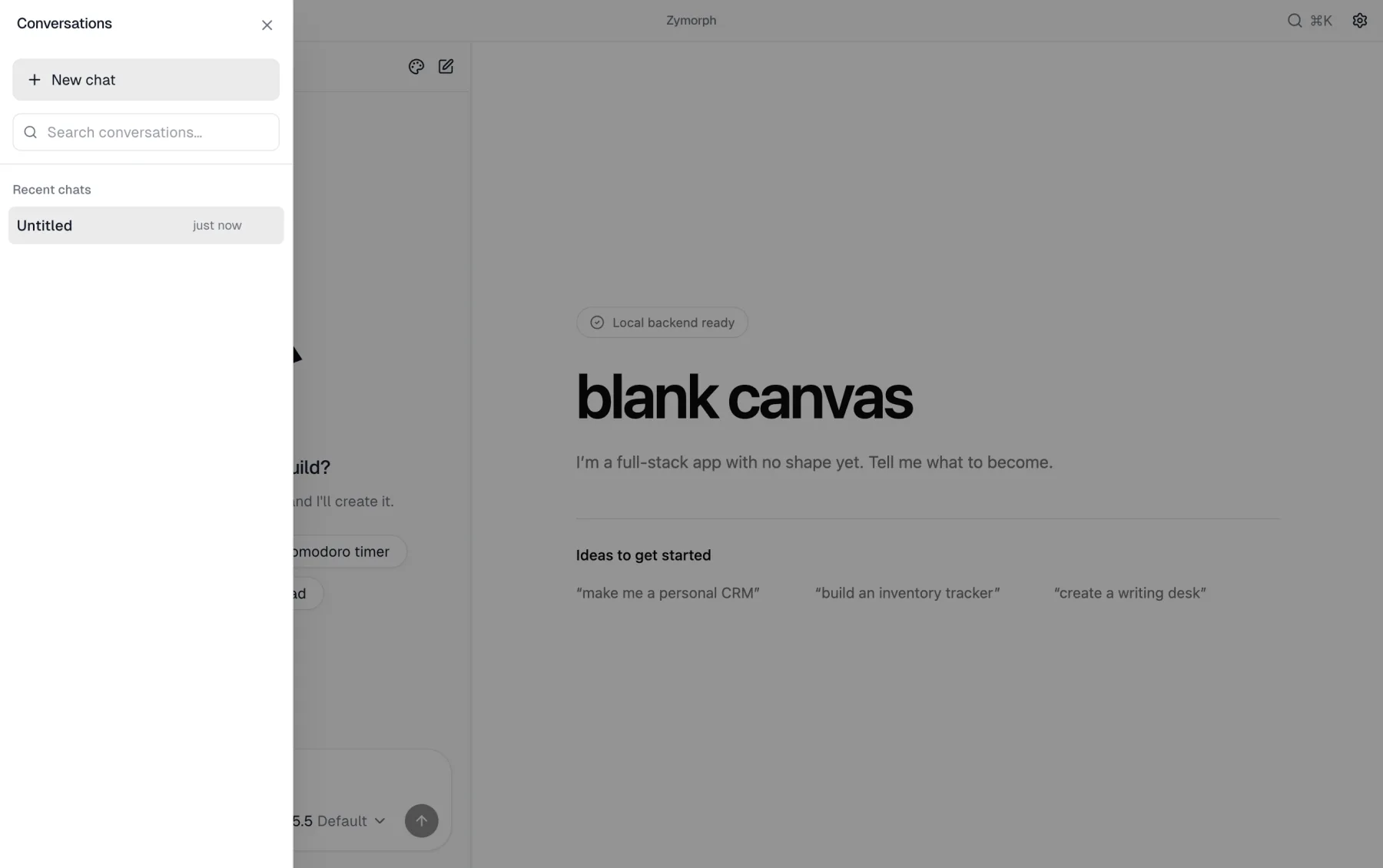 Use a new conversation for a distinct task while keeping the same app.
Design and new chat
The palette control opens the design chooser. The compose icon starts a new chat. Changing the design can reshape the interface; starting a chat changes only the conversation.
Messages and activity
Your requests, Zymorph’s replies, errors, and progress appear in the center. Activity rows such as Reading files, Editing the app, or Preview describe what Zymorph is doing. You normally do not need to open them.
The composer
The box at the bottom of the conversation is where you ask for an app or a change.
- Paperclip: attach reference images.
- Point at UI: select a visible part of your app before describing a change.
- Model: choose which connected model handles the next request.
- Send: submit the request.
- Stop: appears while Zymorph is working.
Point at UI
Select Point at UI, then select the part of the app you mean. A small “Selected” label appears above the message box. Write the change and send it.
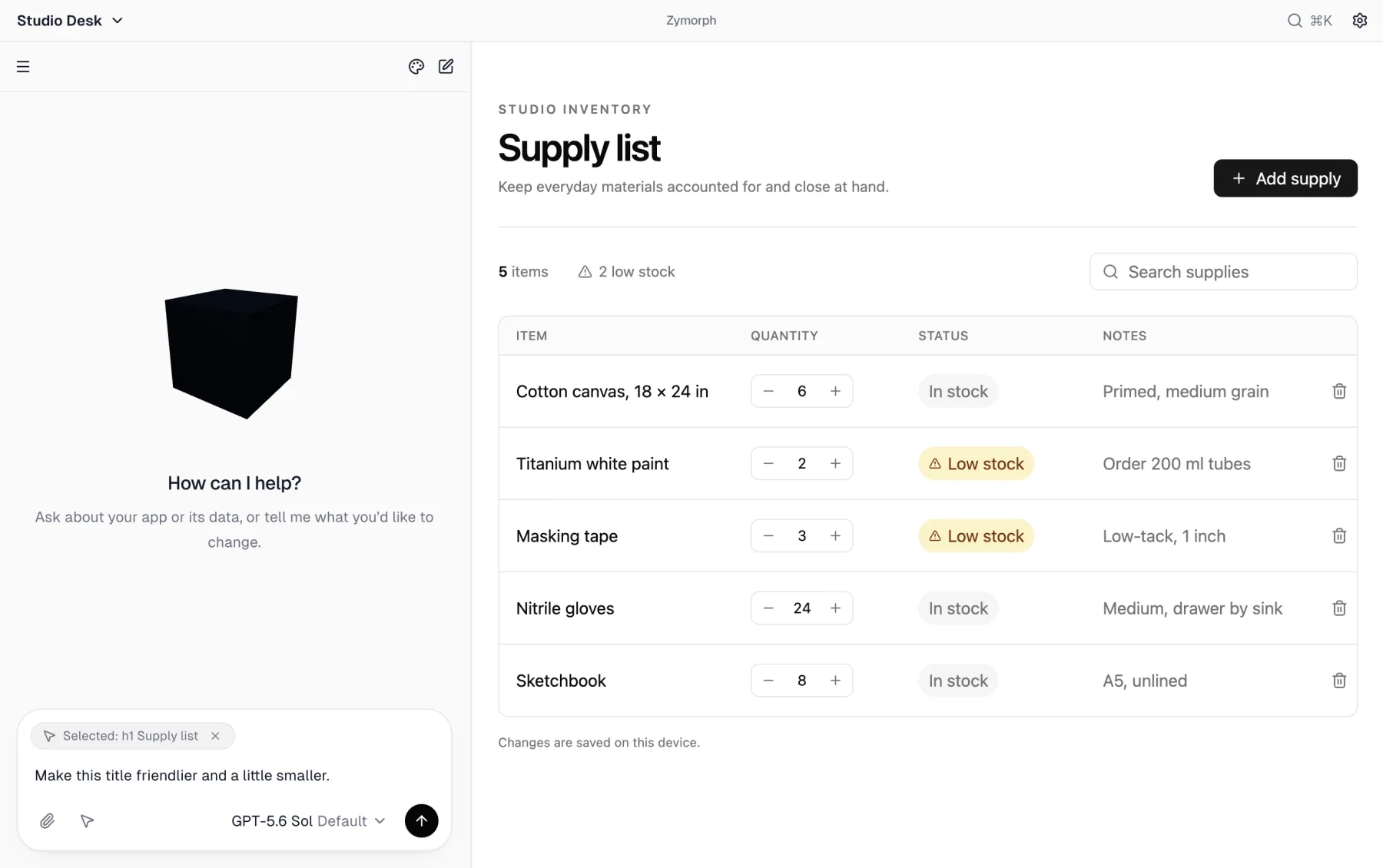 Pointing lets you say “this title” without describing where it is.
Point at UI selects visible interface context. It does not grant folder, account, or device access.
Model and Thinking
Select the model name to search connected models or filter by provider. Some models also offer Thinking levels. Higher levels can take longer or use more provider resources; they do not guarantee a better result.
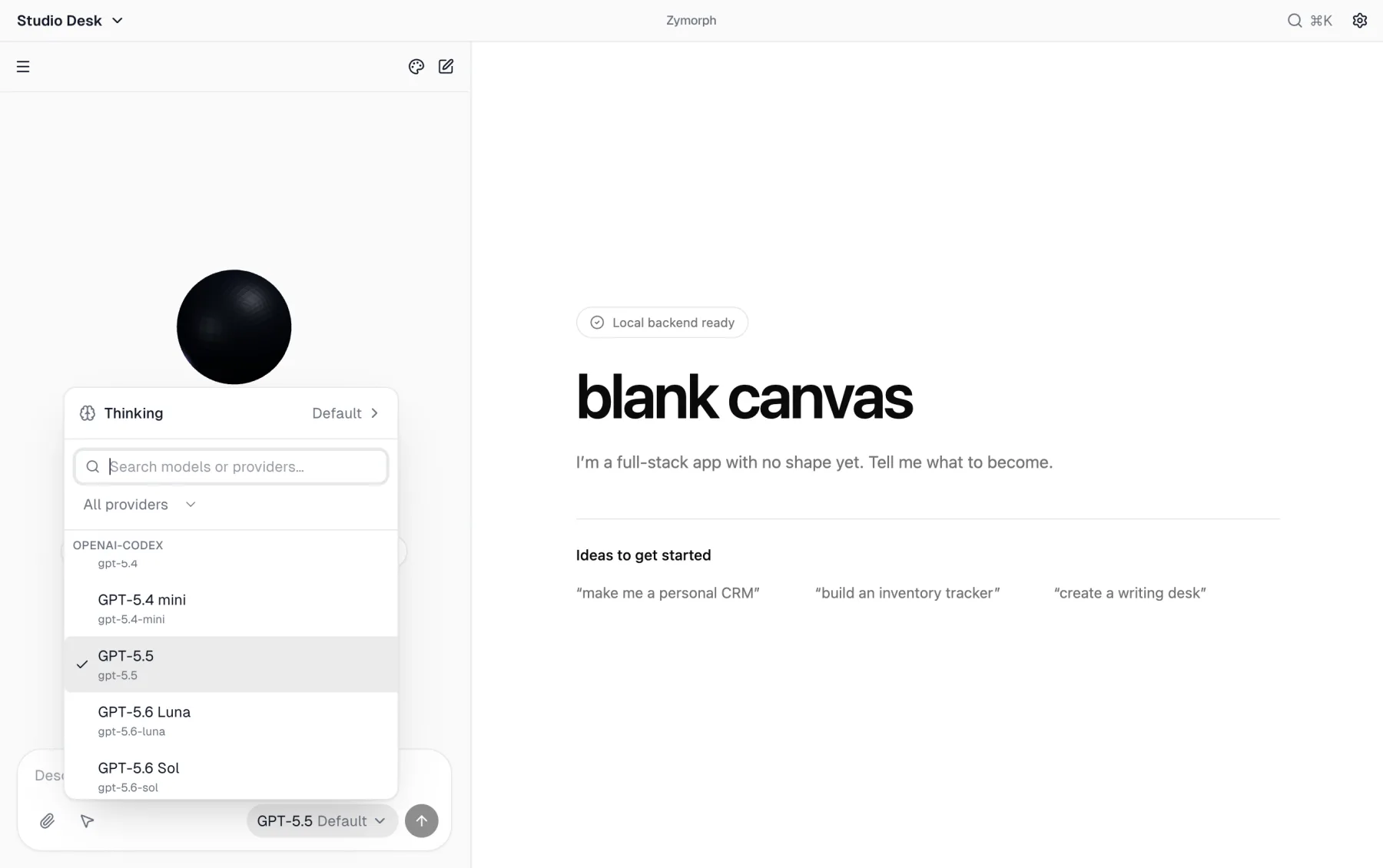 Only models from connected providers appear here.
The app pane
The right side is not a screenshot. Use its forms, buttons, pages, and data directly.
While a request changes the app, the preview dims and a morphing shape appears in its center.
You may also see:
- Getting your app ready… while the app starts;
- Your app is paused with a Start app button; or
- Your app couldn’t start with Try again.
If the app remains paused or cannot start, see App controls and Troubleshooting.
Hide the controls
When you do not need AI and only want to use the app for normal operations, choose Hide controls (Zen) from the command palette. This hides the conversation pane and Zymorph title bar so the app has more room and the AI-related controls stay out of the way. Press Ctrl + ` to bring the controls back.