Start here
Getting started
Go from first launch to a useful first app, then make one improvement.
Name your first app
On first launch, Zymorph opens Name it and choose its design.
Choose a clear name. Use the purpose of the app, such as “Studio Desk” or “Supply List.” You can rename it later.
Choose a design. This is only the visual starting point. You can change it after the app exists.
Select Continue.
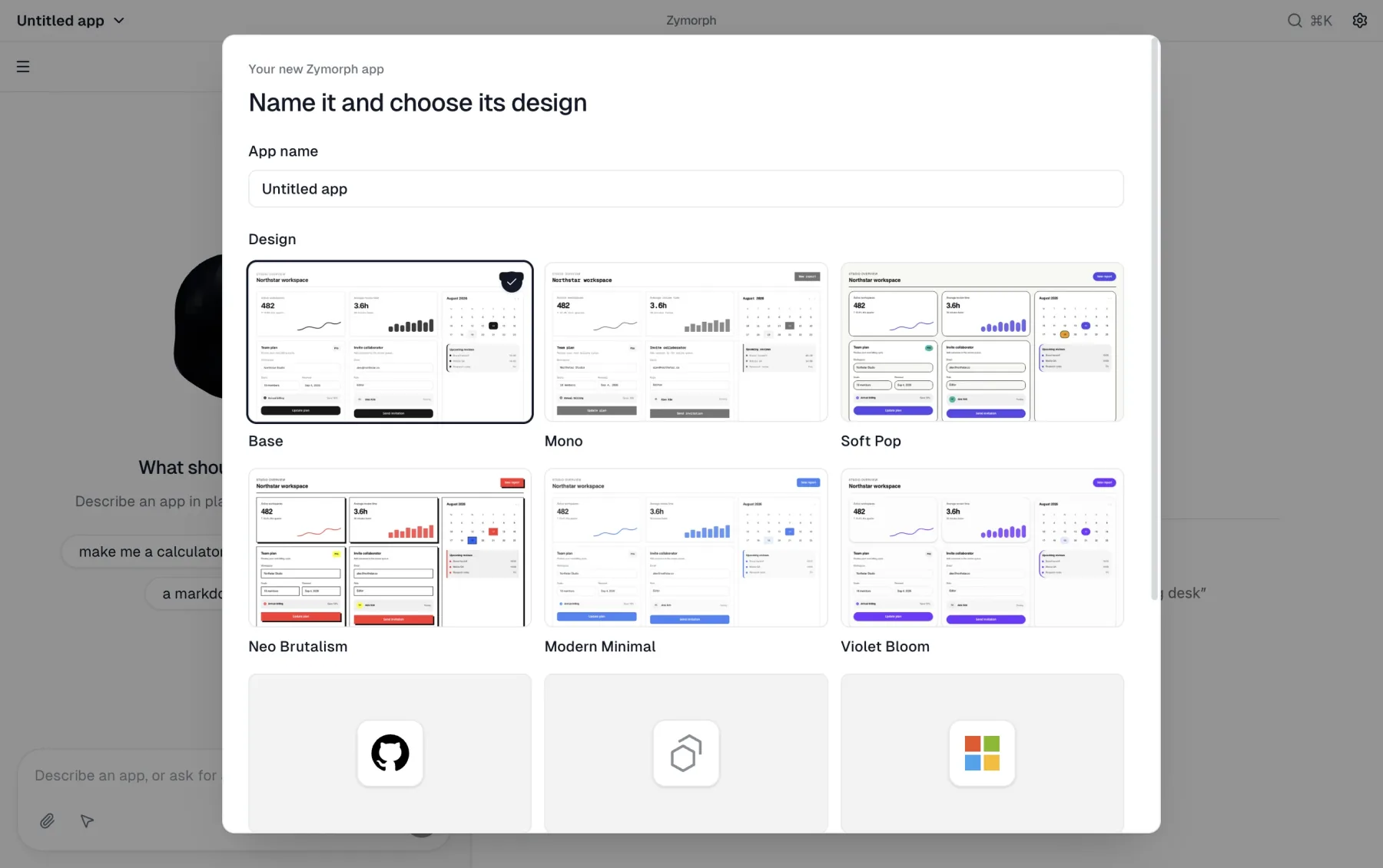 First launch asks for a name and visual starting point—not a technical setup.
Zymorph may briefly prepare the app on this computer. Keep the app open while that finishes. This is normally a one-time step for the device.
Connect a model
Zymorph needs an AI model to understand requests and create or change an app. Model access is not included, so connect your own supported subscription or API key:
- Select Open Model providers when the conversation asks you to connect a model.
- Sign in with a supported subscription or select Add API key.
- Complete the provider’s instructions, then return to the app.
Claude usage through Zymorph may incur additional per-token charges from your Claude usage credits. Your subscription’s included allowance may not cover this usage. Review Claude usage settings and Anthropic’s current conditions before using it. An Anthropic API key is a separate option billed through your Anthropic Console account at API rates.
With any provider API key, the provider bills usage according to its API plan. The key belongs in Settings → Model providers, never in the conversation. See Model providers for the full subscription and BYOK explanation.
Your request leaves the device When you ask Zymorph to create or change an app, the request and relevant working context go to the selected model provider. Review that provider’s privacy and billing terms before connecting it.
Describe one useful app
Describe the app’s purpose and the information it should keep. For example:
Create a simple studio supply list. I need an item name, quantity, low-stock warning, and notes.
A useful first request usually says:
- what the app should help you accomplish
- which information the app should keep
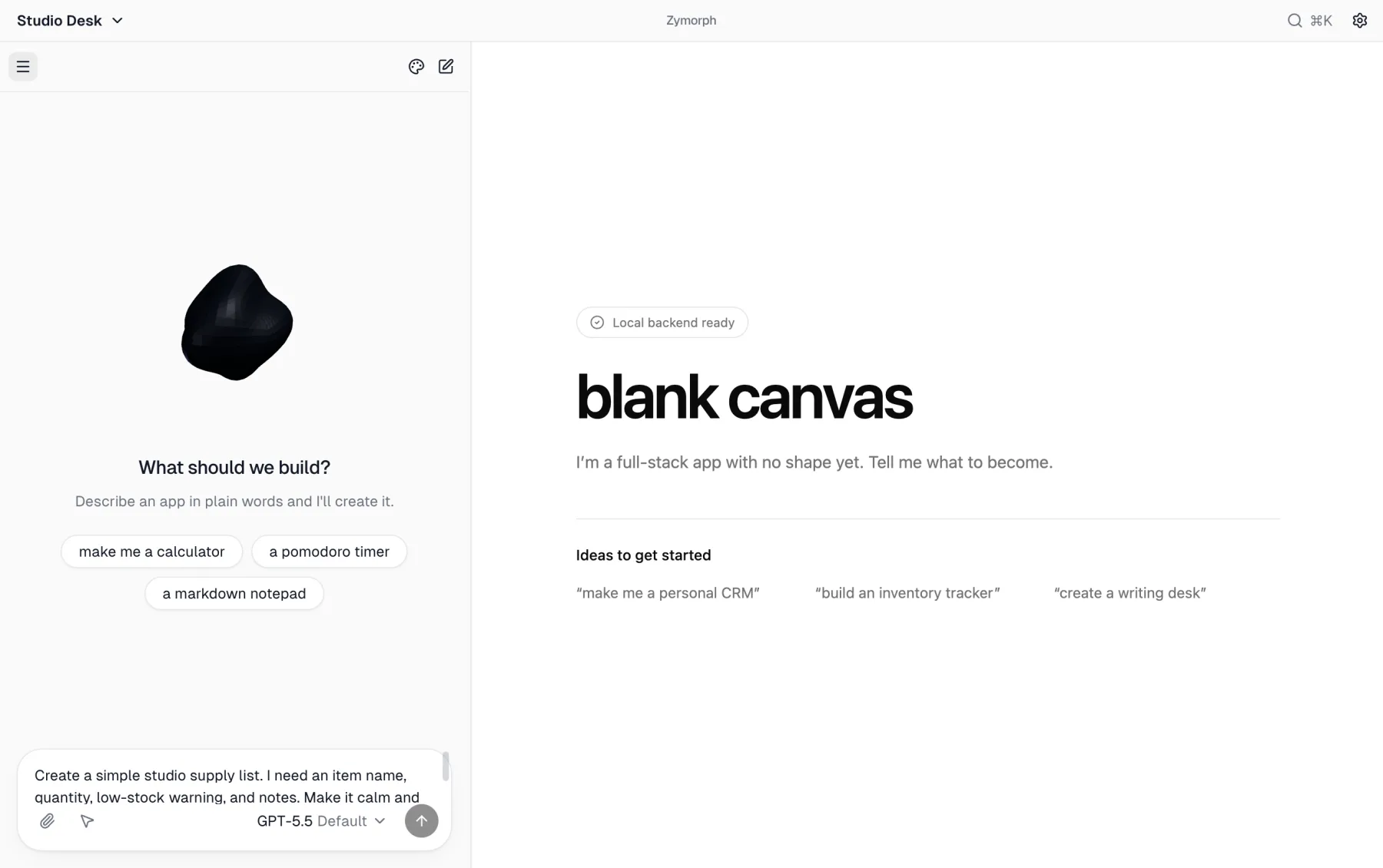 Describe the outcome. Zymorph decides how to build the first version.
Press Return or select Send. Use Shift + Return when you want a new line without sending.
Wait for the first version
While Zymorph works, the conversation shows progress. The app preview on the right dims and a morphing shape appears in its center. The time varies with the request and model.
- Keep Zymorph open while it works.
- Select Stop if you sent the wrong request or no longer want it to continue.
- An error does not mean your existing app data was deleted. Read the message and try the suggested action.
When it finishes, use the app on the right. Add a sample item, search, change a quantity, and reopen the app if persistence matters to you.
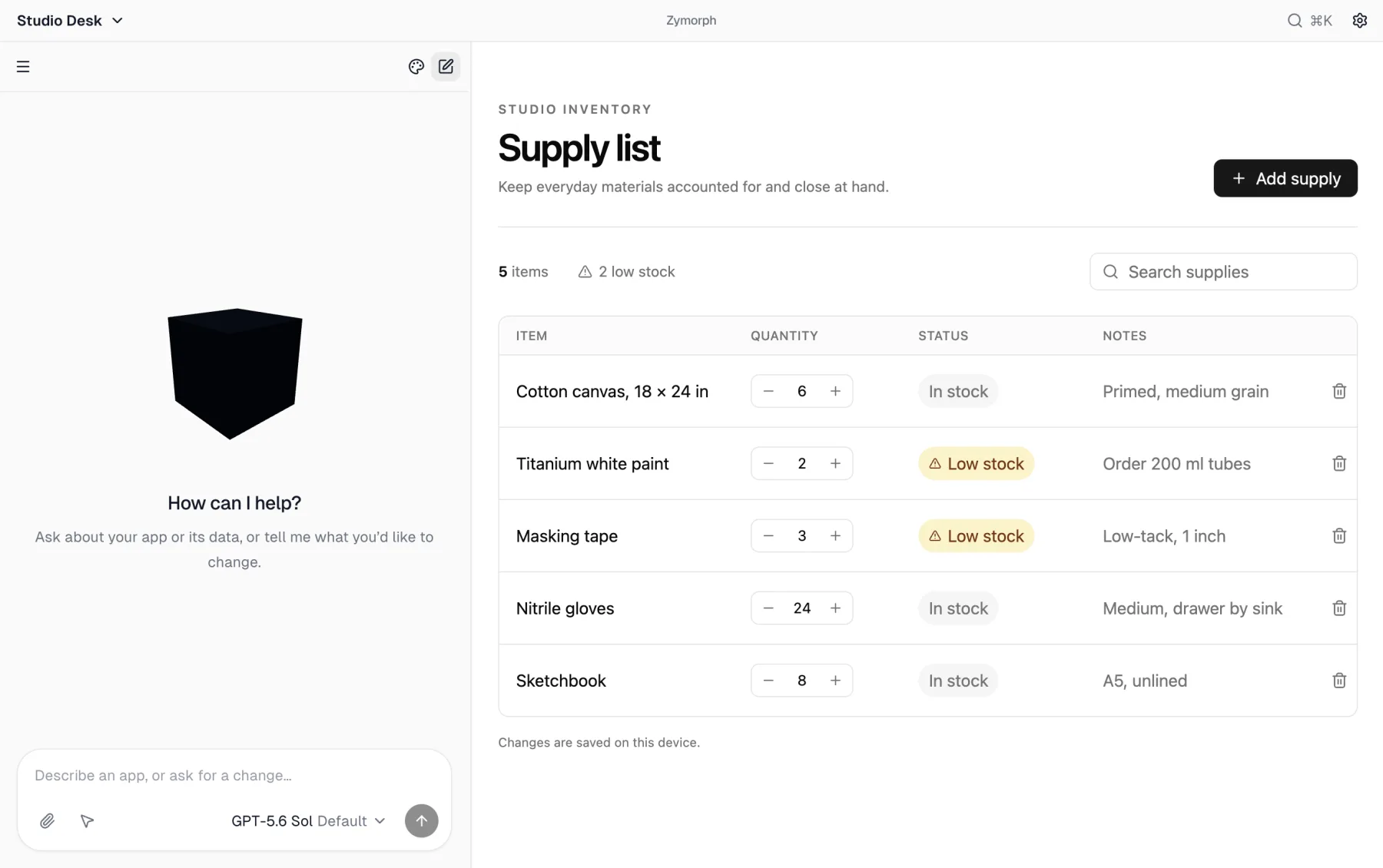 Use the first version before asking for more. Real use reveals the most useful next change.
Ask for one improvement
Return to the conversation and describe one result you want. For example:
- “Put low-stock items at the top.”
- “Make the notes easier to read.”
- “Add a filter for items I need to order.”
What happens next
The first version is not a final delivery. A normal Zymorph workflow is:
- Describe a need.
- Try the result.
- Notice what would make it more useful.
- Ask for that change.
Continue with The Zymorph interface for a complete tour, or Create a useful app for help planning a stronger first request.