Data and access
Folder access
Give one app the smallest useful read-only or read-and-write folder grant.
Why an app needs a folder
A generated app cannot browse your computer by default. Add a folder when you explicitly want the current app to read files there or save changes there.
Folder access belongs to the current app. Another app needs its own grant.
Choose read-only or read + write
Read-only
The app can inspect files but cannot intentionally save changes back to that folder.
Use this for search, summaries, reporting, and analysis.
Read + write
The app can read and change files in the selected folder.
Use this only when the app must create, rename, update, or delete files there.
Prefer read-only unless changing files is part of the task.
Add a folder
- Open Settings → App controls.
- Under Folder access, choose Add read-only or Add read + write.
- Select the smallest folder that contains the needed files.
- Confirm the folder label and access level shown in Settings.
- Return to the app or conversation and retry the task.
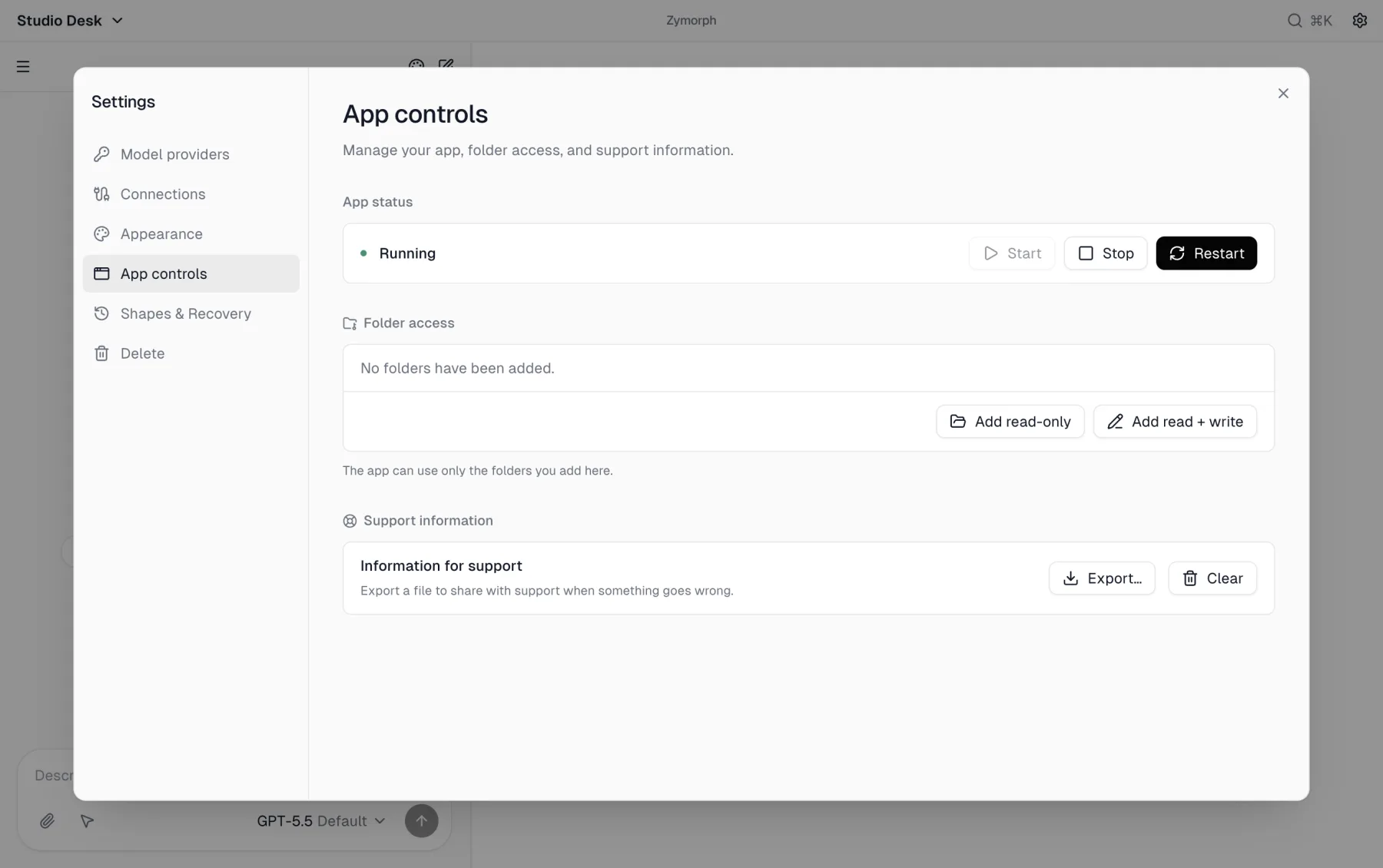 Each granted folder shows its access level.
Do not grant an entire home folder when one project, client, or export folder is enough. Keep unrelated personal, financial, or credential files outside the selected folder.
Remove access
Select the remove control beside the folder in App controls. New app work can no longer use that grant.
Removing a grant does not undo file changes already made. Restore changed files from their own backup or version history when necessary.
Ask Zymorph to use the folder
After granting access, describe the outcome and name the friendly folder label:
- “Summarize the PDFs in the Reports folder.”
- “Create a CSV in the Exports folder.”
- “Find duplicate filenames, but do not change anything.”
State a no-change boundary explicitly when it matters.
If the folder is unavailable
- Confirm the folder still exists and the external drive is connected.
- Remove and add the folder again if its location changed.
- Check that the app has read + write access before asking it to save changes.
- Restart the app under App controls if a newly added grant is not recognized.