Data and access
API keys and private values
Put a key in the right trusted setting, understand BYOK, and keep it out of chat.
Two places you may see an API key
API keys serve different purposes in Zymorph. Put the key in the section that asked for it.
Model-provider key
Lets Zymorph use an AI model to understand requests and create or change apps.
Go to Settings → Model providers → API keys.
Key requested by this app
Lets the current generated app use a particular external service.
Go to Settings → Connections → Keys requested by this app.
A model-provider key is not automatically available to generated apps. An app-specific private value does not connect models to Zymorph.
Bring your own model key (BYOK)
BYOK means bring your own key. You create an API key with a supported model provider and let Zymorph use that provider account.
- Open Settings → Model providers.
- Under API keys, select Add API key.
- Choose the provider.
- Paste the key into the password field.
- Select Save key.
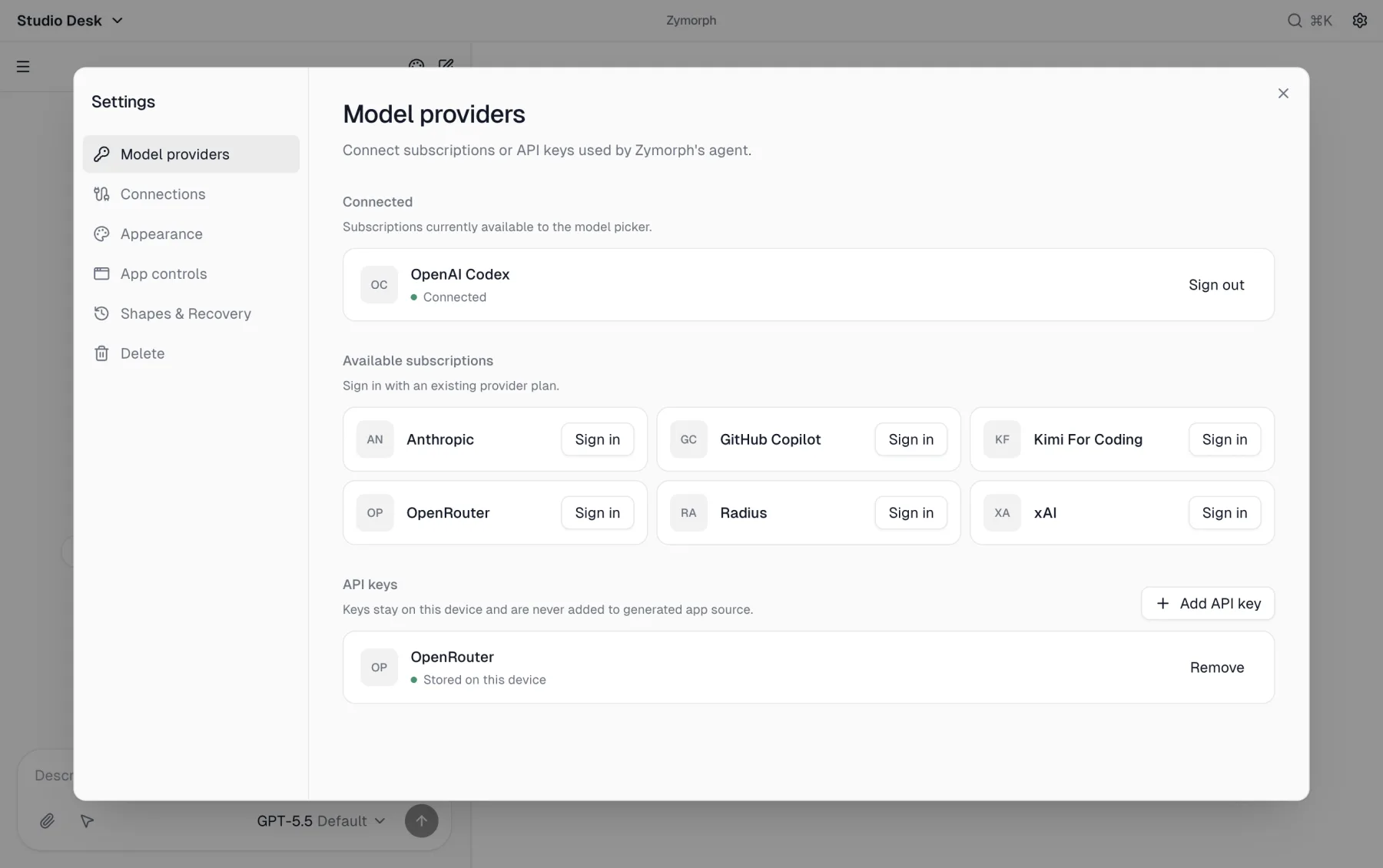 Subscriptions and BYOK keys are alternative ways to make models available.
The provider—not Zymorph—controls API pricing, quotas, retention, model availability, and billing. Set spending limits or alerts in the provider account when available.
Removing a stored provider key stops Zymorph from using that key. It does not necessarily revoke the key at the provider. Revoke or rotate it in the provider account if it may be exposed.
Add a private value requested by an app
Many integrations with third-party services, service APIs, or hosted databases require an API key, access token, or another private value. When the app declares that requirement, Zymorph shows a trusted field for it under Connections.
This section appears only after the current app declares that it needs a private value.
- Open Settings → Connections.
- Find Keys requested by this app.
- Confirm that the label matches the service you asked the app to use.
- Paste the value in the trusted password field.
- Select Save.
The value stays on this device, is shared only with that app, and is not included in chat or generated app source.
Never paste a key into chat
A conversation is sent to the selected model provider. A private key pasted there should be treated as exposed.
If that happens:
- stop the request if it is still running;
- revoke or rotate the key at the service that issued it;
- remove the exposed value from any screenshots or notes;
- save the replacement only in the correct trusted Settings field.
Replace or remove a key
- For a model provider, choose Remove in Model providers and save a replacement if needed.
- For an app-requested value, enter the replacement in its field and select Save.
- Revoke the old key at the provider or service when security—not just local removal—is the goal.
Key safety checklist
- Use a separate key when the service supports it.
- Give it only the permissions required for the app.
- Set provider usage limits where possible.
- Do not include keys in prompts, generated sample data, screenshots, or support messages.
- Rotate keys when a team member leaves or exposure is suspected.