Data and access
Connections
Review and control external accounts requested by the current app.
When an app needs an account
An app may need an external account to perform the behavior you requested—for example, creating or updating a file in Google Drive.
Zymorph keeps this setup in trusted Settings → Connections, not inside the generated app. The app can show that access is unavailable, but it cannot approve itself.
Review a request
Under Requested by this app, check:
- the service and account;
- the reason the app needs it;
- the listed operations;
- whether the connection needs review, sign-in, grant, or reconnection.
Choose an existing account or select Add account. If connection details have changed, Zymorph may ask you to review them again.
Google Drive is the concrete browser-sign-in connection currently documented. Add account opens Google’s sign-in and consent flow in your browser. Sign in with Google, review the requested access, then return to Zymorph and confirm that the intended account is connected. Never paste a Google password, authorization code, or private account value into the conversation.
The current Google Drive connection is limited to files the app creates or that you open for it through the approved flow. The generated app does not receive your Google password or reusable account credential.
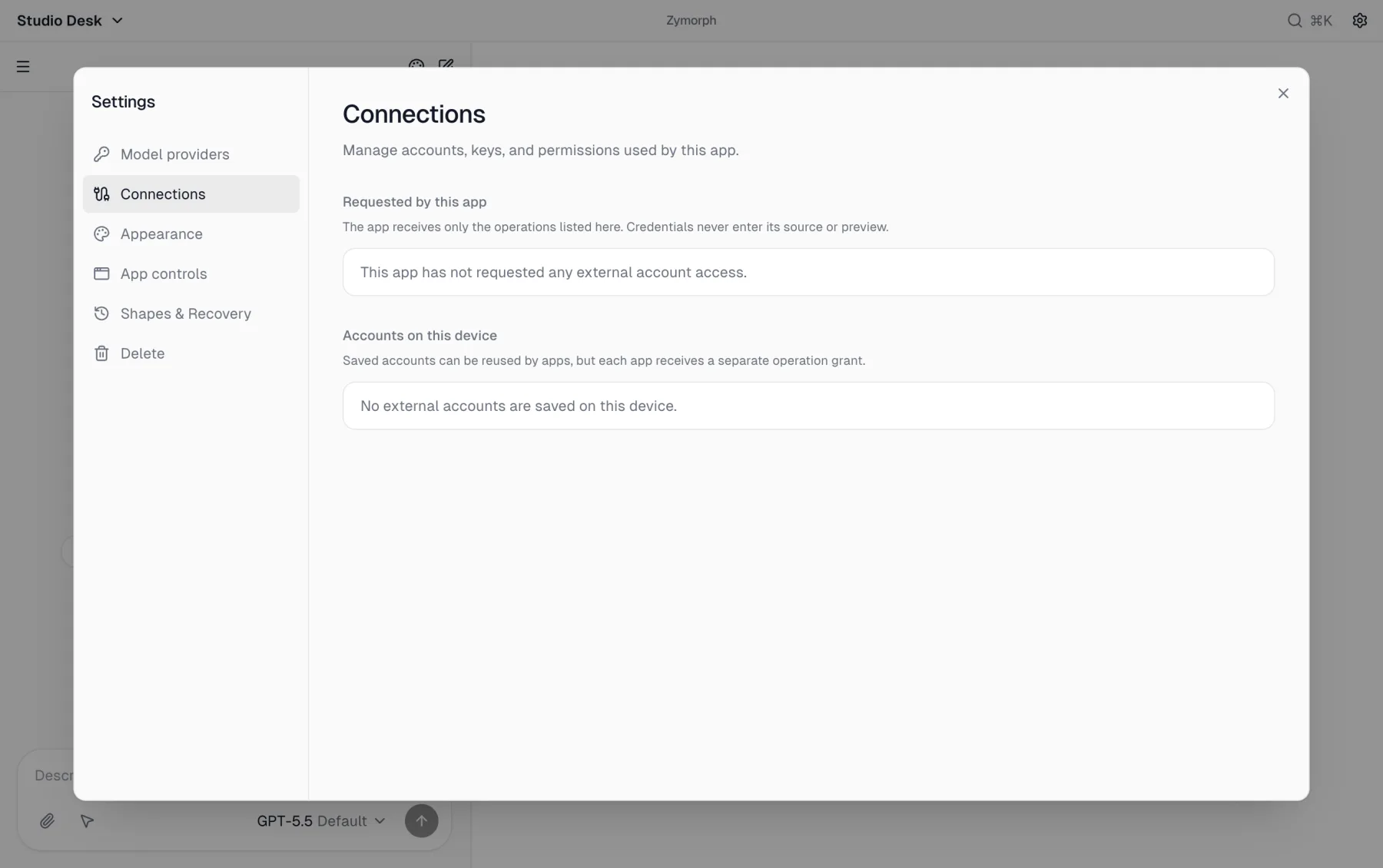 An empty page means this app has not requested an external account.
Saved account versus app grant
These are separate:
- Account on this device: a saved sign-in that can be offered to compatible apps.
- Grant for this app: permission for the current app to perform the listed operations with that account.
A saved account is not automatically granted to every app.
Switch an account
When more than one compatible account is saved:
- choose the account beside the app request;
- select Switch;
- try the app’s connected action again.
Review which account contains the intended information before switching.
Revoke or disconnect
Revoke app
Select Revoke app to remove the current app’s grant. The account remains saved on the device and may still be used by another app with its own grant.
Disconnect
Select Disconnect under Accounts on this device to remove the saved account. This invalidates app grants that depend on it, so more than one app may need to reconnect.
If attention is required
- Account needs to be reconnected: select Reconnect and complete sign-in again.
- Connection details need review: open the details, confirm the service/operations, then approve only if they match your request.
- Account access is not granted: choose the intended account and grant it to this app.
- Secure credential storage is unavailable: unlock or repair the operating system’s credential storage before adding an account.