Settings and safety
App controls
Start, stop, or restart the current app and prepare support information.
Understand app status
Open Settings → App controls.
| Status | Meaning |
|---|---|
| Running | The app is available in the right pane. |
| Starting | Zymorph is getting the app ready. |
| Stopped | The app is paused until you start it. |
| Crashed | The app stopped unexpectedly and needs a restart. |
| Status unavailable | Zymorph could not determine the current state. |
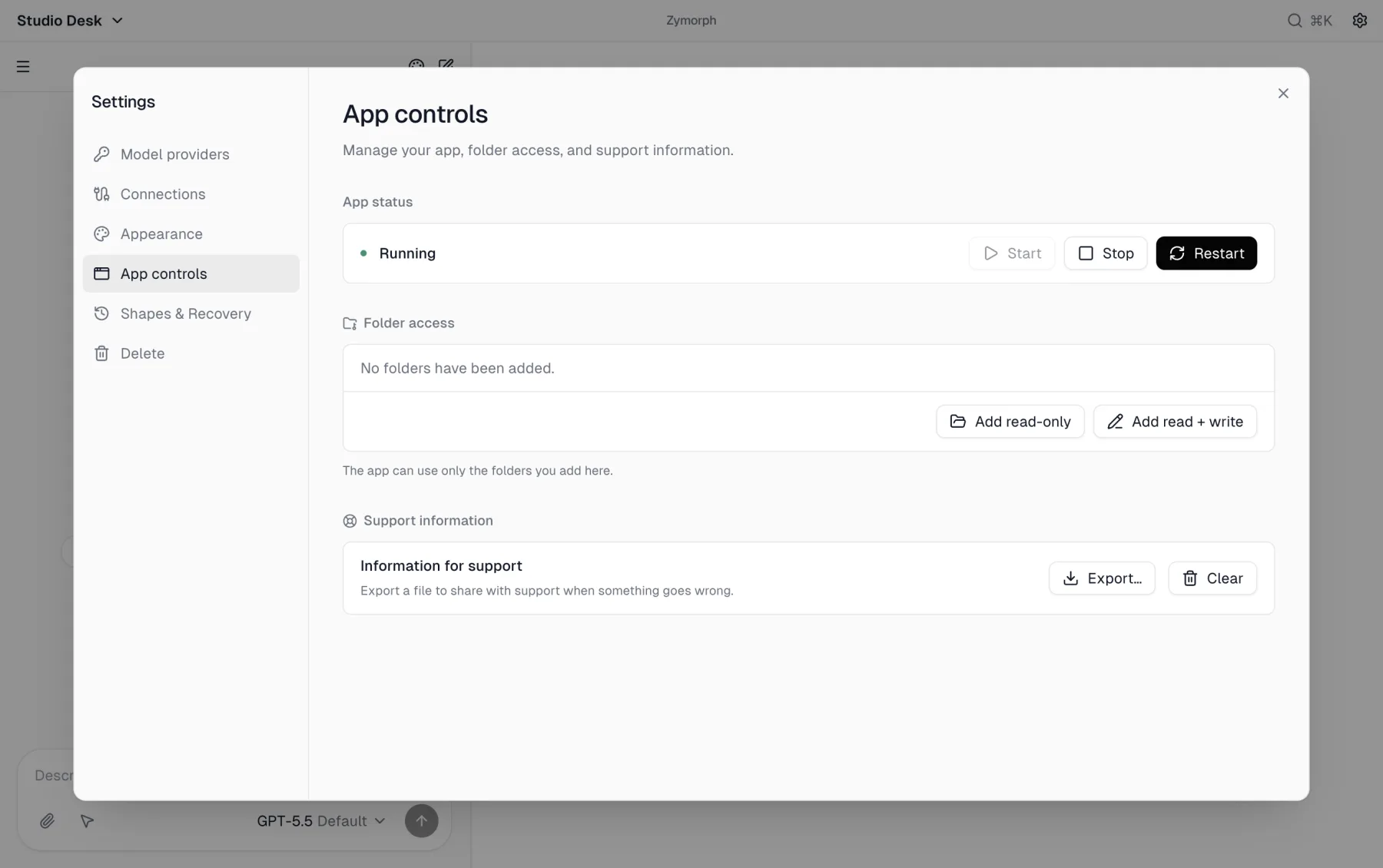 Start, Stop, and Restart affect the generated app—not Zymorph’s model-provider connection.
Start, stop, or restart
- Start opens a stopped app.
- Stop pauses the app. Its saved local data remains, but you cannot use the app until it starts again.
- Restart stops and starts the app. Use this after a failed update, new folder grant, or unexpected preview behavior.
Wait for Running before trying the app again. Repeated restarts will not fix a missing model credit or external-account grant; use the relevant Settings section for those problems.
One-time app preparation
On a new device, Zymorph may show a banner while preparing the private environment used by generated apps. Packaged Zymorph includes its verified execution environment. The banner checks and prepares those bundled resources; creating an app can separately download its project dependencies.
- Keep Zymorph open while preparation is active.
- Pause and resume only when the banner offers those actions.
- If preparation is degraded, select Diagnostics and follow the shown remediation.
This preparation is shared by apps on the device. It is different from creating your first app and from connecting a model.
Folder access
The same page contains the current app’s read-only and read + write folder grants. See Folder access before adding one.
Export support information
Under Support information, select Export… when support asks for a diagnostic file or when you need to preserve evidence of a recurring problem.
The support file is designed to omit credentials, prompts/conversation content, app data, source, unrestricted logs, and host paths. Still review where you save it. Send it only to Zymorph support when requested.
Select Clear to remove the stored support history for this app. Clearing it does not repair the app and does not delete app data.