Build and use apps
Apps
Create, switch, rename, restore, or permanently delete apps on this computer.
Create another app
- Select the current app name in the title bar.
- Choose New app.
- Enter a name and choose a design.
- Select Create app.
Each app begins separately. Its data, conversations, connection grants, private values, folder access, Recovery points, and source history are not borrowed from another app.
Switching apps does not delete their conversations; they are available when you return. Deleting one conversation does not delete its app.
Switch or rename an app
Open the app menu and choose an app under Apps on this computer. The current app is marked Open.
Choose Rename current app… when its purpose has changed or the original name is unclear. Renaming does not change the app’s data or behavior.
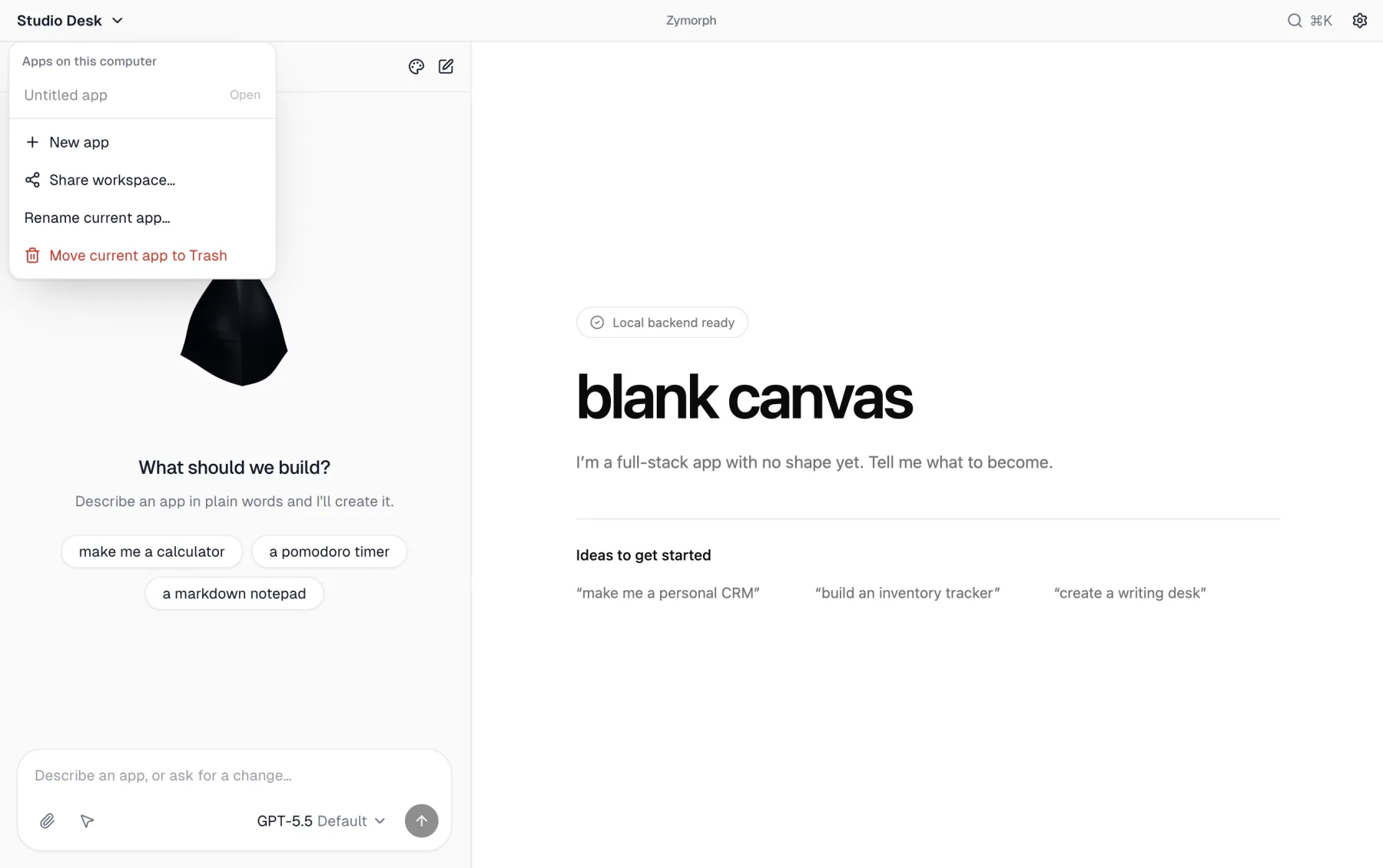 The app menu is also where Trash and restore live.
Move an app to Trash
You can move the current app to Trash from the app menu or Settings → Delete. Zymorph asks for confirmation.
Trash is reversible. Open the app menu and select Restore app name to return it to the active app list.
Delete an app permanently
A trash entry has a separate permanent-delete control. Zymorph warns that this cannot be undone.
Before permanent deletion:
- verify that you selected the intended app;
- restore it and create or export a Recovery point if you may need it later;
- remember that disconnecting an external account is separate from deleting an app.
Permanent deletion removes that app from this device. Do not use it to clear a single conversation or revoke an account connection.